Your first apiary
Stand where the hives are, then say:
- "Create apiary Workshop with a 30 meter radius."
"Workshop" is our example name — say your own apiary's name. Same throughout this manual: Workshop, North Yard, Bench 1, Bench 3 are our example names.
A brand-new organization sees Set Up First Apiary. Stinger shows it only once the server has confirmed you have no apiaries yet — a slow connection never makes your existing apiaries look missing.
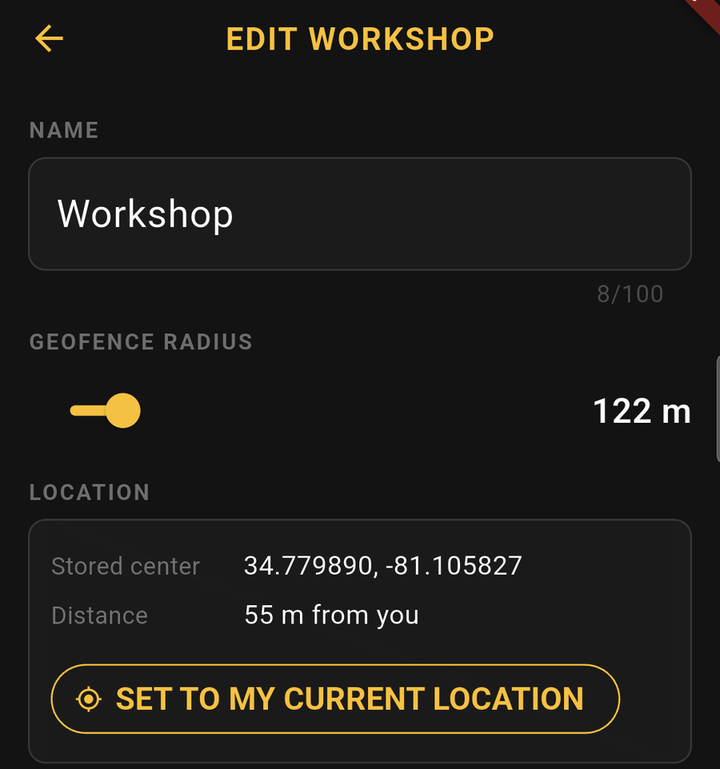
Stinger pins the new apiary to the spot you are standing on, using your phone's GPS fix. That pin is what later tells Stinger which apiary you are working in — walk into the circle and it knows.
Working an apiary you are not standing in. Say "switch to Meadow" or "work on Meadow" (or pick it in the panel) and Stinger holds Meadow for you — even if you are standing inside another apiary's circle, at the bench or at the kitchen table. It stays on Meadow until you have walked out of the circle you were in and then into any apiary's circle; that arrival releases it, and Stinger says so: "Pin released — now in Hazel." Standing inside Meadow's own circle always counts as being in Meadow.
Say the radius in feet or meters — either is accepted, and Stinger reads it back in your organization's measurement system (Settings → Organization: US customary or metric). Skip the radius and you get 50 meters (164 feet). You can change either later.
If you were not standing there
Created an apiary from the couch? It lands with no location (or pinned to your couch). Fix it on the map: open the map from the console's top bar, long-press the spot where the apiary really is and choose Move an existing apiary here (it asks before moving, and offers UNDO). Pins do not drag. An apiary with no location yet shows as a chip on the map: tap it, then tap the spot. Standing in the apiary later, you can also say "calibrate this apiary's location" to re-pin it to where you stand.
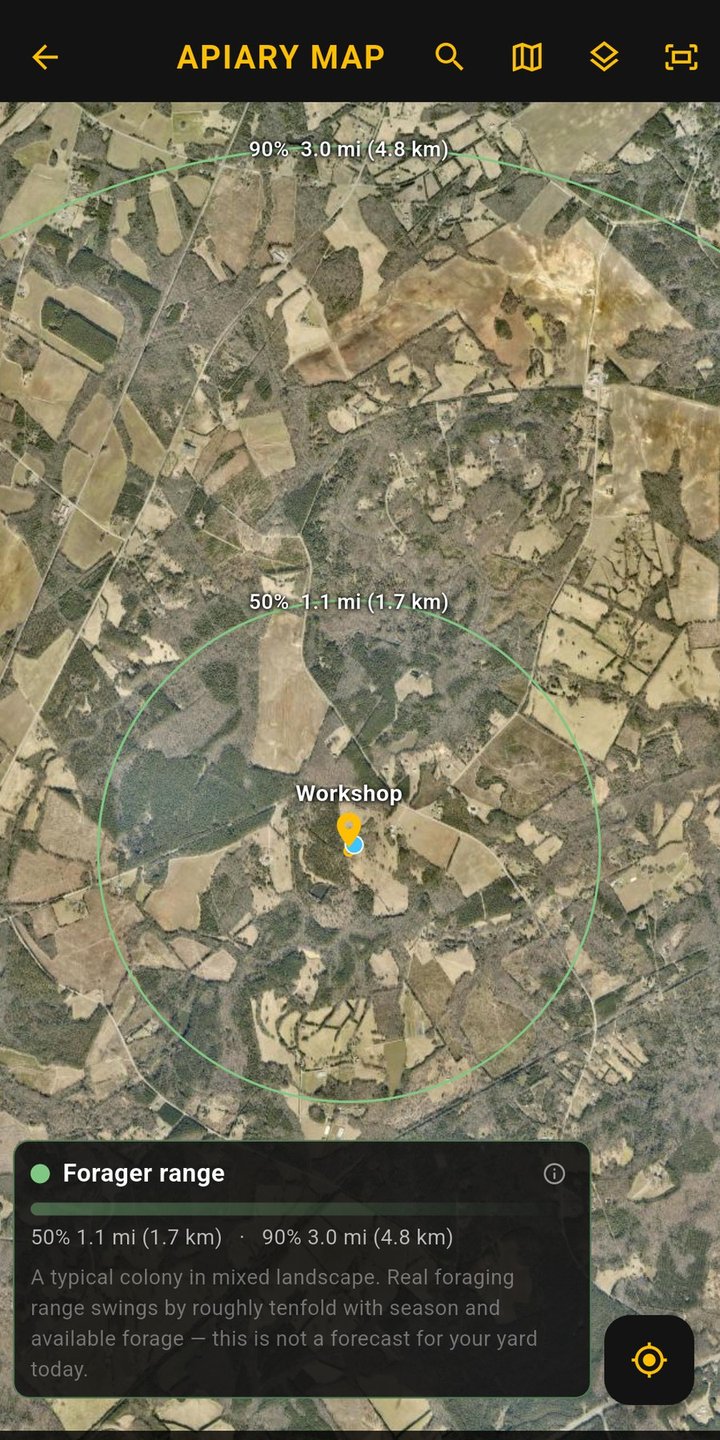
The bee rings on the map
The layers button on the apiary map draws rings around each apiary. The inner line holds half, the outer line 90%. Each ring answers a different question, so they are different sizes on purpose:
- Queen mating: where the drones come from — how far away the colonies that father your queens' offspring can be. It is the distance between the two colonies, not how far a queen flies: she and the drone each fly part of the way to meet. Half within about 1.5 mi (2.4 km), 90% within about 4.9 mi (7.8 km). Measured by DNA-testing offspring and tracing each father to his home colony (Jensen et al. 2005).
- Drone flight range — how far your drones fly to the areas where drones gather to mate. Marked drones were caught out to 2.3 mi (3.75 km) and none at 2.5 mi (4 km), so the edge is a measured limit (Utaipanon et al. 2019).
- Forager range — where a typical colony in mixed country gathers nectar and pollen: half within about 1.1 mi (1.7 km), 90% within about 3 mi (4.8 km), from decoded waggle dances (Visscher & Seeley 1982). Real range swings about tenfold with the season — close to home in a spring flow, much farther in a summer dearth.
The queen ring is about twice the drone ring on purpose: queens tend to fly past the nearest mating areas while drones stop at the closest one — nature's way of limiting inbreeding.
Naming apiaries
Short, distinct names work best out loud: "Workshop", "North Yard", "Fishing Creek". Saying the name is enough — the apiary is created right away, pinned to where you stand. There is no confirm step, so say the name you mean.
Your organization's numbers
A few judgments have a number behind them, and every organization can set its own in the app's Settings → Organization: what counts as weak (40 % of the box or less, by default — 4 frames of bees in a 10-frame box), the mite count that earns a warning (more than 3), how old a reading can be before a read-back adds its date (7 days), and how long a fed colony can go unchecked before it warns (14 days). Changing one changes tomorrow's answers, never yesterday's records, and when yours is not the default the read-back says so once.
Renaming, archiving, deleting
- "Rename apiary Workshop to Home Yard."
- "Archive apiary North Yard." — hides it (history preserved). An apiary with active colonies is refused — Stinger tells you how many to move or archive first. An empty apiary asks once: say "go ahead".
- "Unarchive apiary North Yard." — brings the apiary back; colonies inside stay archived until you unarchive them individually.
- "Delete apiary Walker." — permanent: Stinger asks once (say "go ahead" to proceed, or "leave it" to cancel). It refuses while the apiary still has colonies (archived ones too: delete them or move them out first), open reminders, unresolved review items or a running treatment series, and says which. Colonies you moved out keep their own history. Archive an apiary you have used instead.
Choosing the microphone and the speaker
Stinger listens through your Bluetooth headset when one is connected, otherwise through a USB microphone if one is plugged in, otherwise through the phone. That is Automatic, and it is the default. To choose for yourself, open Settings → Acoustic Tuning: the two pickers at the top, Microphone and Playback, list what is connected right now by name. Pick a device and Stinger remembers it on this phone — a lavalier mic under the veil is used whenever it is plugged in, and Automatic takes over while it is not ("not connected"). When only the phone's own microphone or speaker exists there is nothing to pick, and the row just says so.
One rule the phone imposes: a Bluetooth headset's microphone is only reachable over the headset's voice link, which carries its playback too. Choose the headset's microphone and Stinger speaks through that headset — the phone speaker is greyed out with the reason. Choose a USB or phone microphone and playback is free: the headset (at full quality), the phone speaker, or a USB output. Changing the microphone mid-inspection restarts listening for about a second and Stinger says "Switched to …".
On iPhone, Apple lets no app pick the playback device, so the Playback row offers Automatic and the phone speaker, with Apple's own output button beside them: tap it to send Stinger's voice to a particular headset or speaker. The line under the row says where Stinger is playing.